
Thai AI subtitles: review words, timing and caption styles in PreCut
Create Thai and bilingual captions in PreCut, review specialist names, correct text and timing, and verify MP4 or SRT output before publishing.
AI can prepare the first transcript and subtitles. Publish-ready captions also need correct meaning, timing and readability. Thai speech containing English brand names or specialist terms deserves extra review. Use PreCut to separate text correction from caption styling.
Choose the language that matches the recording
Select the spoken language in Auto Edit. For Thai recordings with English terms, choose Thai + English terms and add known names to Names & specialist terms. High uses the installed Large v3 model. Fast is a draft model whose word timestamps can be estimated, so review timing manually.
Check names, numbers and terms before styling
- People, brands and product names.
- Amounts, dates, units and numbers that can be misrecognised.
- English terms within Thai sentences and similar-sounding words.
- Quiet speech, background noise and multiple speakers.
Listen to the original at the relevant position rather than correcting from context alone. Use Edit text for individual corrections. Find & replace can help with a recurring term after reviewing examples; it should not silently change a different meaning.
Separate timing adjustments from text corrections
Correcting spelling does not necessarily require moving a word. PreCut retains word timing when text is corrected. Use Adjust word timing when a caption appears early or late, and listen around the word boundary. Translated lines use caption timing rather than invented word timings.
| Layer | Question |
|---|---|
| Text | Are names and terms spelled correctly? |
| Meaning | Did a cut or translation change the intended message? |
| Timing | Do captions appear and disappear with speech and edits? |
| Readability | Can viewers read the size, font and contrast on a phone? |
| Position | Do captions cover faces, important content or platform controls? |
Style captions after checking the words
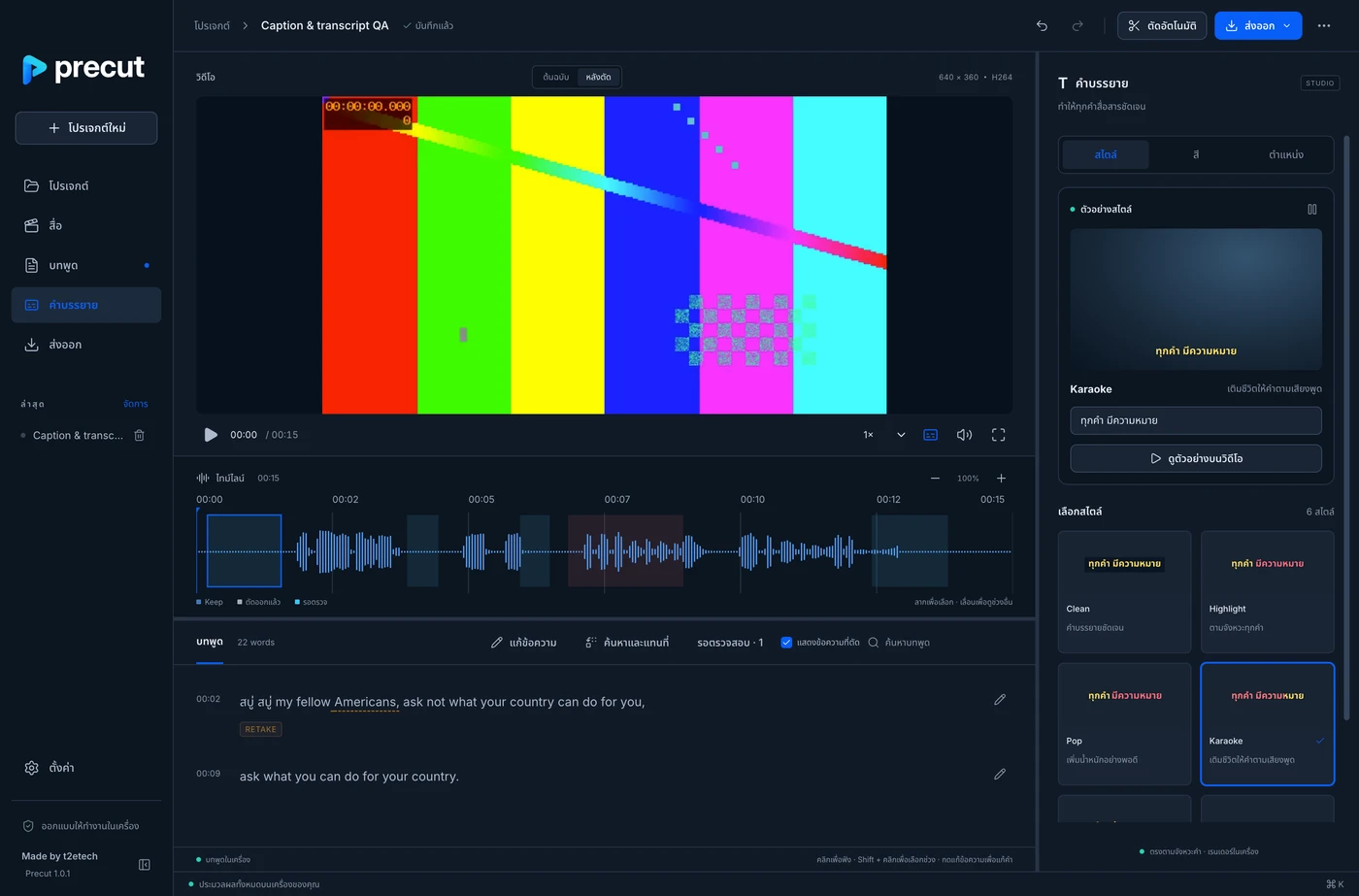
Open Captions in Transcript to edit fonts, styles and layout. Choose Word Highlight, Pop or Karaoke as appropriate, then check at the audience’s screen size. Busy motion can compete with the picture; choose a treatment that supports reading.
Drag captions in the video and choose Whole clip or This caption for the adjustment scope. Check edges and platform controls, especially for vertical video where interface buttons and descriptions can overlap content.
Check translation and optional models
Bilingual captions can require the optional offline translation model. If the model is missing, the app marks translation as awaiting the model. A visible source transcript does not mean translated lines are complete. Review names, idioms and words with multiple meanings in the target language.
Verify the actual MP4 and SRT files
Watch the rendered video to inspect embedded captions. When delivering an SRT, inspect its text and timing too. Fonts and effects rendered into a video do not appear identically in every SRT player. Check the beginning, important cut boundaries and the final sentence before publishing.
Prepare and review the silence-removal first cut →
Review trial and export terms
PreCut’s trial and export limits are shown in the app and Store. Producing a draft transcript and exporting a file are separate steps. Check remaining exports, system compatibility and licence terms before buying. AI transcription and translation are not guaranteed to be correct for every word.