
Automatic video silence removal: review a first cut with PreCut
Prepare a first cut with PreCut, review silence cuts, compare before and after, and preserve speaking rhythm before exporting.
Silence removal can prepare a first cut for talking-head, teaching and screen-recorded videos. Silence can also be useful: a breath, a moment for the viewer to think or a pause before an important sentence. Follow automated suggestions with listening and visual review.
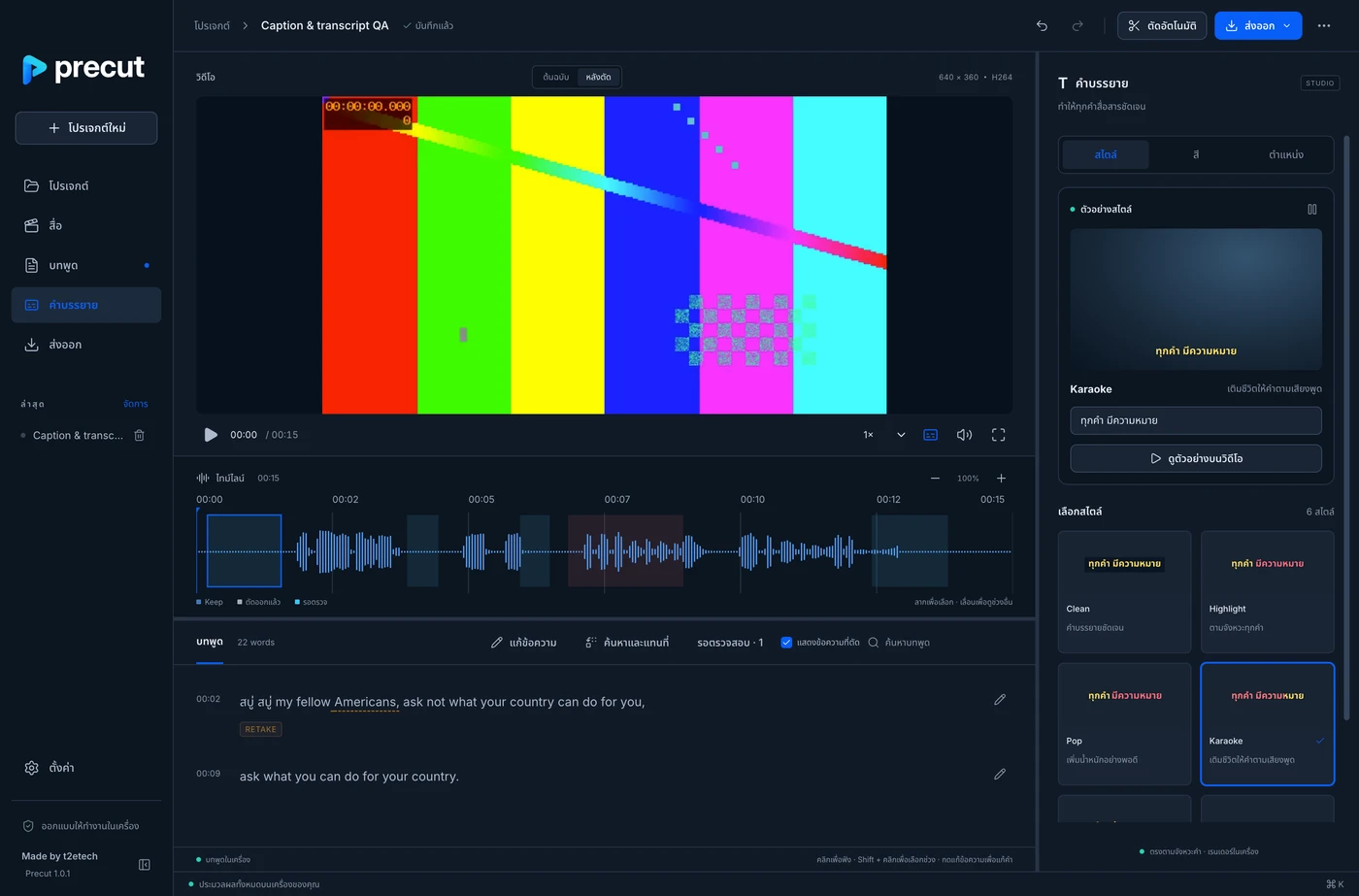
Separate silence cuts from speech decisions
PreCut analyses audio and a transcript to propose edits. Clean safe edits accepts verified silence or pause cuts. Filler words, repeated speech and retakes remain review decisions. Transcript-based editing should not change the speaker’s intended meaning.
| Edit | What to check |
|---|---|
| Silence | The cut keeps the beginning and end of each word |
| Filler words | The remaining sentence sounds natural |
| Repeated speech | You deliberately choose the version to keep |
| Retakes | Picture, sound and meaning match the chosen take |
| Captions | Text and timing match the edited video |
Start with footage you have rights to use
Import your recording, open Auto Edit and choose the spoken language. Core work runs on your computer with installed models. Optional models or features can require downloads; check storage and Settings before a large project.
Review analysis before cleaning
Open Review edits when analysis completes. Listen around each cut, especially quiet speech, word beginnings and deliberate pauses. Keep an unsuitable pause or adjust the edit manually. Apply Clean safe edits when the suggestions fit your material.
- Check clip boundaries and softly spoken first words.
- Keep pauses that introduce important ideas or topic changes.
- Preserve visual demonstrations that continue while speech stops.
- Review multiple speakers and background sound separately.
Use Before/After and Undo
Compare picture and sound before and after an edit to confirm continuity. PreCut edits are reversible. Work through individual decisions instead of accepting every suggestion at once, then play longer sentences across the changes.
Review captions after choosing the cut
Check names, brands and specialist terms in the transcript before styling captions. Correct words and timing by listening to the source. For translated or bilingual captions, review each line against the original meaning.
Create and review Thai AI subtitles →
Verify exports and licence terms
Watch the actual rendered file at the beginning, middle and end. Check sound, cut boundaries and captions after rendering. A good editor preview does not replace final-file QA. PreCut offers a trial under its in-app policy; review remaining exports and the current Store terms before choosing a paid licence.
Do not judge a cut by the number of pauses removed
A useful cut preserves understanding and a natural delivery. To measure time saved, compare the same footage and workflow. Automated editing alone does not substantiate a speed claim for every recording.